Airtable Calendar: How It Works, How to Set It Up, and When to Use It

9
If you’re managing time-based work in Airtable, like deadlines, launches, or events, you’re probably wondering how to get a clearer view of what’s happening and when. Airtable’s Calendar view makes that possible by letting you display your records on a visual timeline.
Airtable is more than a spreadsheet. It’s a flexible platform that helps you organize and connect different types of information. You can build project trackers, content calendars, CRMs, and more. But once dates are involved, it becomes harder to manage everything in a table layout.
The Calendar view solves that by showing your records in a format that matches how your brain processes time. You can see tasks by day, week, or month, spot overlaps, and adjust plans without jumping between apps.
Still, the Calendar view has specific strengths and some limitations. It’s great for planning and visibility, but it’s not built to replace a full calendar app.
In this guide, we’ll break down exactly how the Airtable Calendar works, how to set it up, and when it makes sense to use it in your workflow.
Key Takeaways
Airtable Calendar is a built-in view that displays records with date fields on a visual timeline
It’s best for content planning, project timelines, events, and client work inside Airtable
You can view entries by week or month, filter by fields, and drag records to reschedule tasks
The calendar only works within a single table and lacks features like real-time alerts or two-way calendar sync
It’s not a full calendar replacement but works well when paired with structured Airtable workflows
Tools like Akiflow help fill the gaps, especially for professionals managing tasks across multiple platforms
Use Airtable Calendar when you want a quick, flexible view of time-based data; skip it when your planning needs are more complex or spread across tools
What is the Airtable Calendar View?
The Calendar view is a way to visualize your Airtable records based on dates, directly inside your base. It is not a separate calendar app. Instead, it works as one of several views you can create from a table, alongside Grid, Kanban, Gallery, and others.
To use the Calendar view, your table needs at least one date-based field. Once selected, Airtable places each record on the calendar based on that field. You can choose between a monthly or weekly layout, depending on how closely you need to track your schedule.
When you open a Calendar view, you’ll typically see:
A timeline view of your records, shown as cards on the calendar
A toggle to switch between Week and Month views
Filters to control which records appear
Color-coding options to group by category, status, or assignee
The ability to drag records to change their dates directly on the calendar
This view gives you a clean, visual layer on top of your data, which makes it easier to manage work that’s organized around time. It’s especially helpful for planning content, tracking deliverables, or coordinating events; all without leaving the Airtable base you’re already using.
Also Read: How to Add Tasks in Google Calendar
How to Set Up an Airtable Calendar
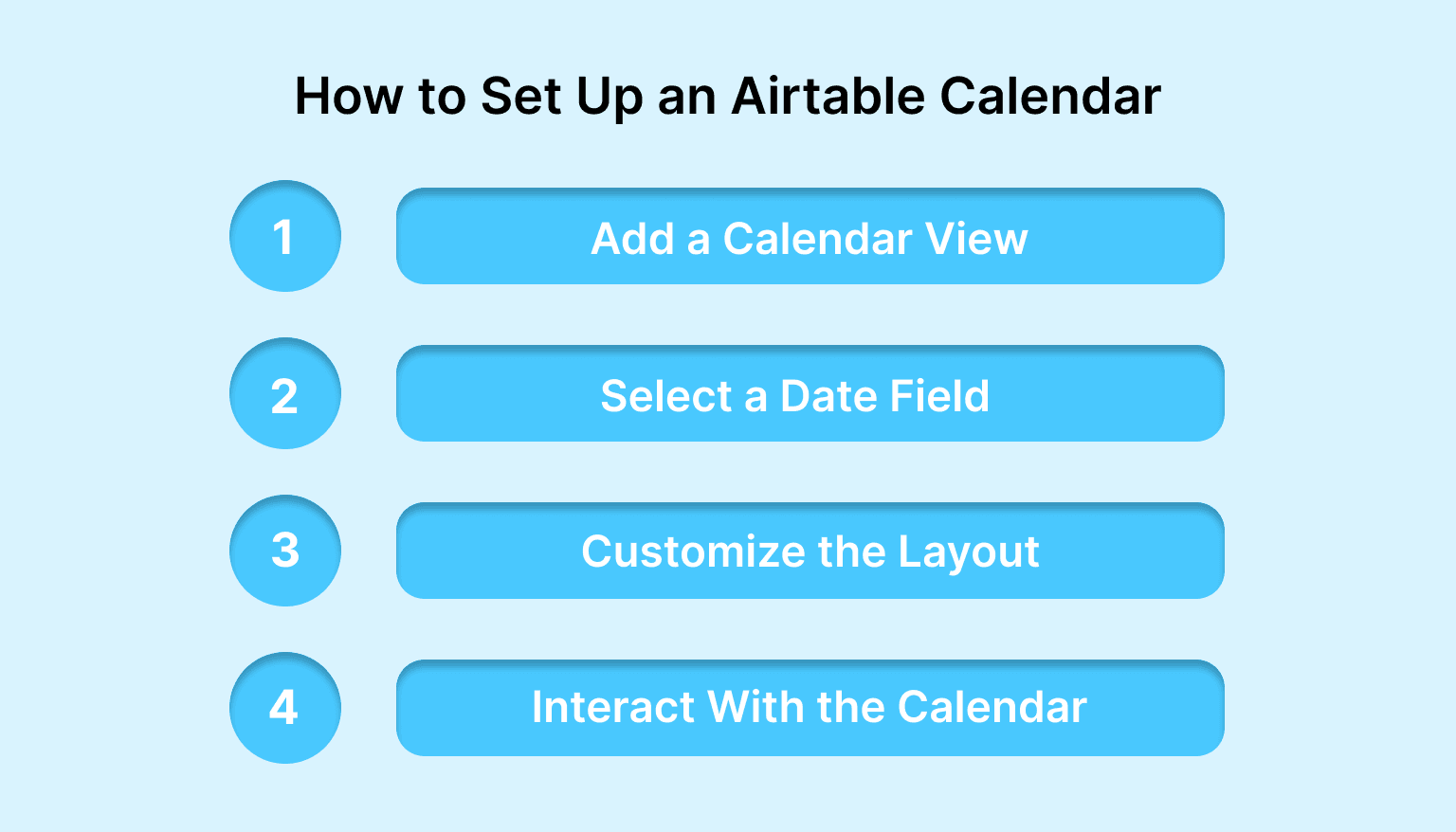
Setting up a Calendar view in Airtable takes just a few steps. As long as your table includes at least one date field, you can turn your records into a visual timeline with minimal setup.
Step 1: Add a Calendar View
Open your Airtable base and select the table you want to work with
Click the “+” next to your existing views
Choose Calendar from the list of available view types
Give the view a name if you want to keep things organized
Step 2: Select a Date Field
Airtable will prompt you to choose a date field from your table
This field controls where records appear on the calendar
If you have more than one date field, you can change it later in the view settings
Step 3: Customize the Layout
Switch between Week and Month views depending on how detailed you want the calendar to be
Use filters to focus on specific types of records, such as tasks assigned to a certain team or content tagged for a specific channel
Choose a color field (like Status or Category) to visually group related records
Step 4: Interact With the Calendar
Drag and drop records to change their dates
Click on a record to open the full entry and make edits
Hover over entries to preview key information at a glance
Use the calendar sidebar to adjust settings or collapse the filter panel
Optional: Show Date Ranges
If your records have a start and end date, you can enable a range display
Go to view settings and select both fields to show records spanning multiple days
Airtable automatically saves your calendar as part of your base, so you can return to it anytime. You can also duplicate the view to experiment with different filters or layouts without starting from scratch.
When to Use Airtable Calendar
The Calendar view works best when you’re managing records that revolve around dates. It helps you turn raw data into a time-based layout, making it easier to spot what’s coming up, what’s overlapping, and what might need to shift.
Here are some common use cases where Airtable Calendar adds real value:
Good Use Cases for Calendar View
Content planning: Plan blog posts, newsletters, podcasts, or social media campaigns by scheduling publish dates. You can filter by status, tag by channel, and drag things around as timelines shift.
Project timelines: Track milestones, deliverables, or internal deadlines for ongoing projects. Monthly view is great for long-term planning, while weekly view helps teams stay on top of short-term work.
Event or meeting tracking: Manage webinars, interviews, live events, or internal meetings by storing relevant details in records and viewing them on the calendar.
Client work or appointments: For agencies or freelancers, the Calendar view can help schedule client check-ins, delivery dates, or project phases across multiple accounts.
Internal team planning: Use it for sprint planning, internal reviews, or cross-functional scheduling when date coordination matters.
When It Might Not Be the Best Fit
The Calendar view is helpful, but it’s not designed to handle every planning need. Here’s when it can fall short:
You need to visualize dependencies between tasks
(Airtable’s Gantt view is better suited for this)You want alerts or notifications based on upcoming dates
(This requires custom automations or external tools)You need to view tasks from multiple tables in one calendar
(Not possible inside Airtable without workarounds)You want a complete daily planner or integrated calendar
(Calendar view shows data from Airtable only, it doesn’t pull in meetings or tasks from other tools)
If your work depends on tracking across apps, blocking time on your calendar, or managing everything in one place, the Airtable Calendar might need to be part of a larger workflow.
Also Read: How to Sync Todoist with Your Task Manager and Calendar
Limitations to Be Aware Of
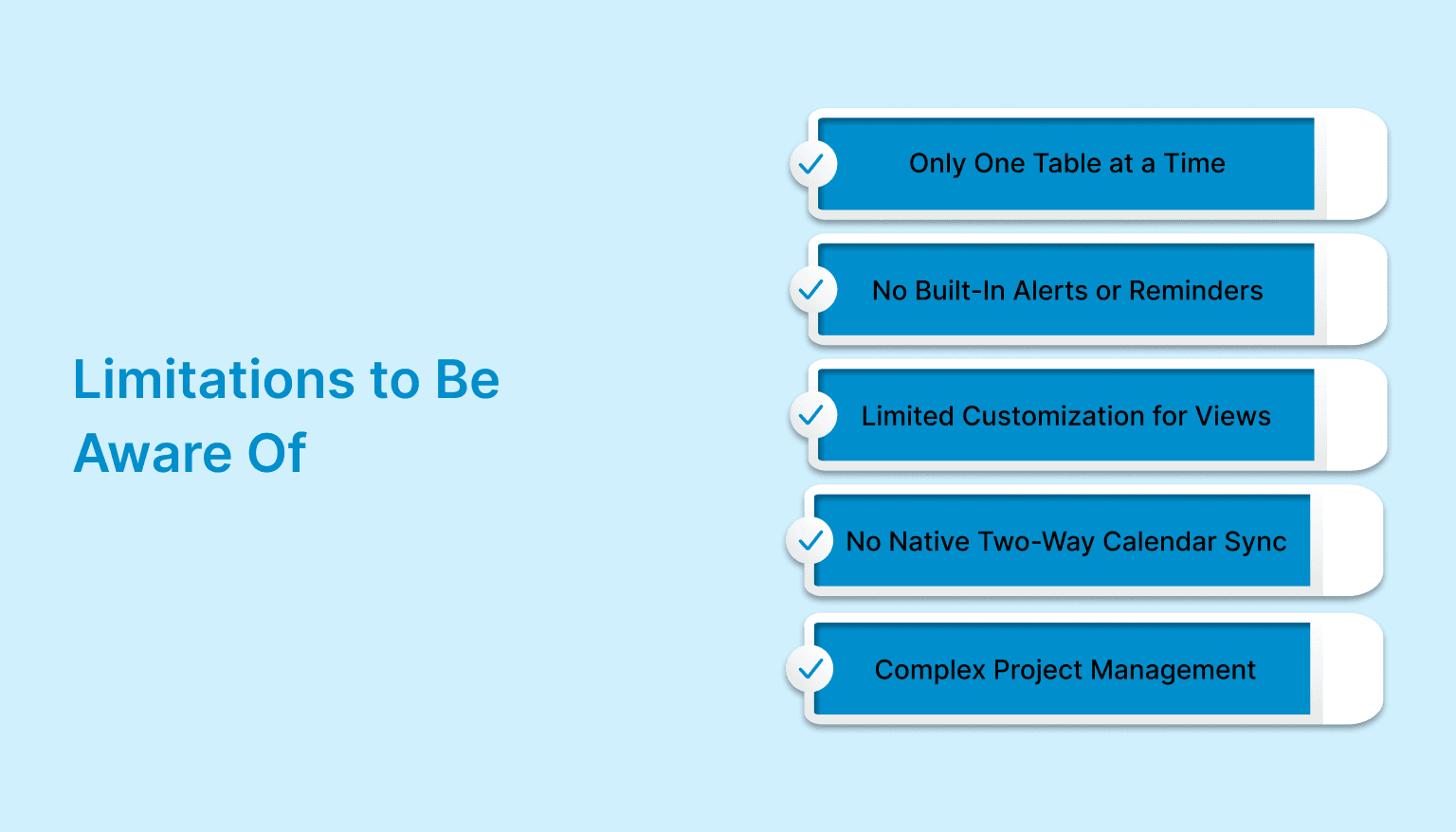
While Airtable Calendar is useful for visualizing time-based data, it’s important to understand where its limitations start. Knowing what it can’t do will help you avoid frustration or overbuilding around the wrong tool.
Here are some key limitations to keep in mind:
Only One Table at a Time: The Calendar view works within a single table. You can’t view records from multiple tables in the same calendar. If your workflow spans several tables, like events in one and tasks in another, you’ll need to create separate calendar views or look into external tools that combine data.
No Built-In Alerts or Reminders: Airtable Calendar doesn’t send notifications when dates are approaching. To get alerts, you’ll need to set up automations inside Airtable or use integrations with tools like Slack or email. This adds extra setup and isn’t always reliable in real time.
Limited Customization for Views: You can filter and color-code records, but you can’t change the calendar layout much beyond that. For example, you can’t resize time blocks or show hourly scheduling. This makes it less useful for detailed daily planning.
No Native Two-Way Calendar Sync: While you can sync an Airtable calendar to Google Calendar or iCal, the sync is one way unless you use third-party tools. Changes made in your external calendar won’t reflect back in Airtable. Syncs also aren’t instant unless you’re on a paid plan.
Not Ideal for Complex Project Management: If your workflow involves task dependencies, resource planning, or dynamic timelines, the Calendar view may feel too basic. Airtable’s Timeline or Gantt views, or a dedicated project management tool, are better suited for those needs.
Airtable Calendar vs. Other Planning Tools

The Airtable Calendar is a great way to visualize your data inside Airtable, but it’s not the only option when it comes to planning your time. Depending on how you work, you might need a different kind of calendar experience or a tool that brings multiple sources together.
Here’s how Airtable Calendar compares to other common tools:
Airtable Calendar vs. Akiflow
Airtable gives you a timeline for your records. Akiflow gives you a full planning environment. If your tasks come from multiple tools like Gmail, Notion, Slack, or Asana, and you want to block time for them directly on your calendar, Airtable alone won’t be enough.
Akiflow lets you bring everything together into a single command center. You can turn tasks into time blocks, sync with your calendar, and plan your day without juggling multiple apps. Airtable is excellent for managing structured data, but Akiflow helps you act on it.
Airtable Calendar vs. Google Calendar
Airtable Calendar is data-driven. You’re working with records inside a structured database. Google Calendar, on the other hand, is built for event scheduling and time management. It handles recurring events, invites, time zones, and personal availability in a way Airtable doesn’t.
If you’re managing tasks or content within Airtable, the calendar view helps you stay organized. But for daily scheduling, meetings, or time blocking, you’ll likely need Google Calendar alongside it.
Airtable Calendar vs. Notion Calendar
Notion’s calendar is more document-based. It’s great for individuals or small teams who want lightweight planning mixed with content and notes. Airtable gives you more structure, deeper filtering, and better options for connecting data across multiple views.
If your calendar needs are tied to databases and workflows, Airtable is the stronger tool. If you’re writing and organizing ideas in one place, Notion might feel more natural.
Must Read: How to Connect Google Calendar to Slack (Step-by-Step Guide)
Is an Airtable Calendar Right for You?
Airtable Calendar is a solid choice when you need a visual layer on top of structured, date-based data. It works best when your planning happens inside Airtable, and you want to stay close to your records while still seeing the bigger picture.
It’s worth using if:
Your workflow already lives inside Airtable
You need to map out timelines for content, events, or deliverables
You prefer to view and adjust records in a calendar format
You want a simple way to plan without leaving your base
It might not be the right tool if:
You rely on multiple tools and need to manage tasks across platforms
You need real-time alerts, notifications, or two-way calendar sync
You work with daily time blocks or detailed personal scheduling
You need project management features like dependencies or workload balancing
If you’ve outgrown the Airtable Calendar or find yourself jumping between apps to stay organized, it may be time to add a dedicated planning layer on top. Tools like Akiflow are built to unify tasks, calendars, and time blocking in one place; helping you move from tracking work to actually doing it. Start your free trial today!
FAQs
Q: Does Airtable have a calendar feature?
A: Yes. Airtable includes a built-in Calendar view that lets you display records with date fields on a weekly or monthly timeline. It’s ideal for visualizing time-based work like deadlines, events, or content schedules.
Q: Can Airtable sync with Google Calendar?
A: Yes, but the sync is one-way by default. You can publish your Airtable calendar to Google Calendar, but changes made in Google Calendar won’t update the data in Airtable unless you use third-party tools or custom automations.
Q: What exactly is Airtable used for?
A: Airtable is a flexible platform used to organize and manage data in a highly customizable way. It’s commonly used for project tracking, content planning, CRMs, inventory, and internal workflows across teams.
Q: Can Airtable sync with Outlook Calendar?
A; Not directly, but you can sync an Airtable calendar to Outlook using the iCal URL. Like with Google Calendar, the sync is one-way and doesn’t support editing from Outlook back to Airtable.
Q: Does Airtable have a scheduling tool?
A: Airtable doesn’t include a full scheduling system with availability, meeting booking, or time slot selection. However, you can create simple schedules using date fields, calendar views, and automations for basic coordination.


