What’s the Best Calendar App for Microsoft Teams? 2026 Guide for Team Scheduling

10
When teams adopt Microsoft Teams as their central hub for collaboration and communication, calendars quickly become the beating heart of how work actually gets organized. By early 2025, Microsoft Teams was reporting over 320 million monthly active users worldwide, making it one of the dominant platforms for hybrid and remote work across organizations of all sizes.
Despite this massive scale, a surprising trend emerged in how meetings are actually scheduled. 57 percent of meetings took place without any calendar invite at all, according to Microsoft’s own workplace data. That means teams are often juggling ad hoc calls, last-minute plans, and fragmented schedules instead of relying on structured calendar workflows. For professionals who sit in meetings all day yet still struggle to find time for focused work, that inconsistency shows why the choice of calendar tools matters.
In 2026, simply using the built-in Teams calendar isn’t enough for many organizations. People are looking for calendar apps that offer shared views, better collaboration features, clearer planning across time zones, and smarter scheduling for internal and external meetings. Over the next few sections, we’ll break down the best calendar apps you can pair with Microsoft Teams, including native options and third-party tools, to help your team stay coordinated and intentional with time.
Key Takeaways
Microsoft Teams’ built-in calendar is suitable for basic meeting scheduling but lacks full shared calendar functionality out of the box.
Many professionals are searching for calendar apps that offer shared team views, external scheduling, and better visual planning.
Top calendar tools that work with Teams include Shared Team Calendar, Calendar Pro, Calendly, and Google Calendar (via connectors).
Outlook Calendar remains the most complete Microsoft-native option, especially for teams already in the Microsoft 365 ecosystem.
Tools like Akiflow help individuals manage tasks, meetings, and focus time in one place by syncing with calendars and reducing daily friction.
Adding a calendar app to a Teams channel is easy and setting up the right combination of tools can transform how your team works with time.
What People Really Mean When They Search “Best Calendar App for Microsoft Teams”
Most professionals who search for a calendar app for Microsoft Teams aren’t just looking to schedule another meeting. They’re trying to solve a specific workflow problem: their current setup doesn’t give them enough clarity, control, or visibility across the team.
The built-in Microsoft Teams calendar is tied to Outlook. It’s designed primarily for scheduling meetings rather than managing tasks, timelines, or shared calendars. It works fine if your team is already deep in the Microsoft 365 ecosystem and your calendar needs are basic. But once your team starts to grow, work across departments, or collaborate with clients, gaps show up quickly.
Here’s what people are usually looking for when they search for a better calendar inside or alongside Teams:
A shared team calendar that isn’t just a list of meetings: Teams doesn’t include a true shared calendar out of the box. To get one, you either need to create a shared Outlook calendar and link it, or add a third-party app.
One place to view everyone’s availability and team-wide schedules: Most users want to see more than just their own meetings; they want to see who’s out, what deadlines are coming up, or when a cross-functional project is happening.
Tools that handle both internal and external scheduling: Professionals who book calls with clients or external partners often want integrated scheduling tools like Calendly that avoid back-and-forth messages.
More visual or flexible calendar views: Monthly views, color-coded categories, project timelines, and drag-and-drop planning are all common needs that go beyond what Teams natively offers.
In short, the intent behind this search is less about “what’s already in Teams” and more about “what works best with Teams” to fill the gaps. That’s exactly what we’ll cover next.
Must read: The 6 Best Scheduling Apps You Need in 2025
Best Calendar Apps for Microsoft Teams in 2026
Whether you're managing internal projects, coordinating with clients, or trying to get a clearer picture of your team's schedule, the right calendar app can make a big difference. Below are the top options that work well with Microsoft Teams, including both built-in and third-party tools, depending on what your team actually needs.
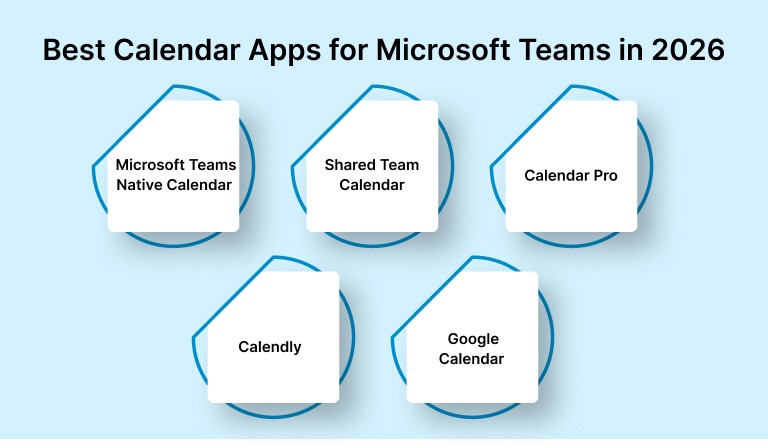
1. Microsoft Teams Native Calendar
Best for: Basic scheduling inside Teams and Outlook
Works inside Teams: Yes
Shared calendar support: Limited (via Outlook)
If your organization already uses Microsoft 365, the native Teams calendar is the default option. It syncs directly with Outlook, lets you create recurring meetings, and now includes better views like day, week, and month.
But it’s still designed primarily around meetings, not broader team planning. It doesn’t support shared calendars by default unless you create and manage them separately in Outlook.
Good to know: Microsoft has been gradually rolling out calendar improvements inside Teams, but it’s still not a full scheduling solution for teams who need visibility across multiple users or projects.
2. Shared Team Calendar (Microsoft App Marketplace)
Best for: Viewing and managing a shared calendar within Teams channels
Works inside Teams: Yes (as a tab)
Shared calendar support: Yes
This is a Microsoft-supported app that you can add as a tab in any Teams channel. It allows you to create and manage a shared calendar where everyone in the channel can view and edit events. It's a straightforward solution if you want something visual and accessible without leaving Teams.
Tip: It's especially useful for tracking PTO, deadlines, launch dates, or any events the entire team should see.
3. Calendar Pro
Best for: Lightweight team calendar with fast setup
Works inside Teams: Yes
Shared calendar support: Yes
Calendar Pro is a third-party app built for Teams users who need shared team calendars with minimal setup. You can create multiple calendars, control who can view or edit them, and display them directly inside your Teams workspace.
It's not designed for external meeting scheduling, but it's a solid option for internal coordination like shift planning, project timelines, or resource tracking.
4. Calendly (with Teams Integration)
Best for: Scheduling meetings with external stakeholders
Works inside Teams: No native tab, but integrates with Outlook and Teams
Shared calendar support: No (individual scheduling)
Calendly remains one of the best tools for professionals who schedule meetings outside their organization. In 2026, its Microsoft 365 integration supports syncing with Outlook calendars, automatically checking availability, and inserting Microsoft Teams meeting links into invites.
While it does not live inside Teams, it can sit alongside your existing collaboration tools. Check that meeting invitations, availability, and calendar updates reach the people who need them before relying on a new scheduling workflow.
Use case: Sales calls, interviews, consulting sessions, or client onboarding.
5. Google Calendar (via Connector)
Best for: Teams using mixed Google Workspace and Microsoft environments
Works inside Teams: Indirectly via integration
Shared calendar support: Yes
While not a native Microsoft product, Google Calendar can be connected to Teams through third-party connectors or tools like Zapier, Cronofy, or Appy Pie. This is helpful for organizations working across platforms or collaborating with clients who use Google Workspace.
However, setup can be technical and may not provide a smooth in-app experience compared to native Microsoft solutions.
At a glance:
Calendar App | Works Inside Teams | Shared Team Views | External Scheduling | Syncs with Outlook/Teams | Best For |
Teams Native Calendar | ✔ | ! (via Outlook) | ✖ | ✔ | Basic scheduling inside Teams |
Shared Team Calendar | ✔ | ✔ | ✖ | ✔ | Team-wide visibility |
Calendar Pro | ✔ | ✔ | ✖ | ✔ | Internal coordination |
Calendly | ✖ (not in-app) | ✖ | ✔ | ✔ | External meetings and bookings |
Google Calendar | ! (via connector) | ✔ | ✔ | ! (limited via tools) | Cross-platform collaboration |
Also read: Organize Your Workday Like a Pro: Best Planner & Calendar Apps 2025
How to Add and Manage Calendar Apps Inside Microsoft Teams
Adding a calendar app to Microsoft Teams takes just a few clicks. Whether you’re using Microsoft’s own calendar tools or bringing in a third-party option, the setup process is mostly the same.
Step-by-Step: Add a Calendar App to a Teams Channel
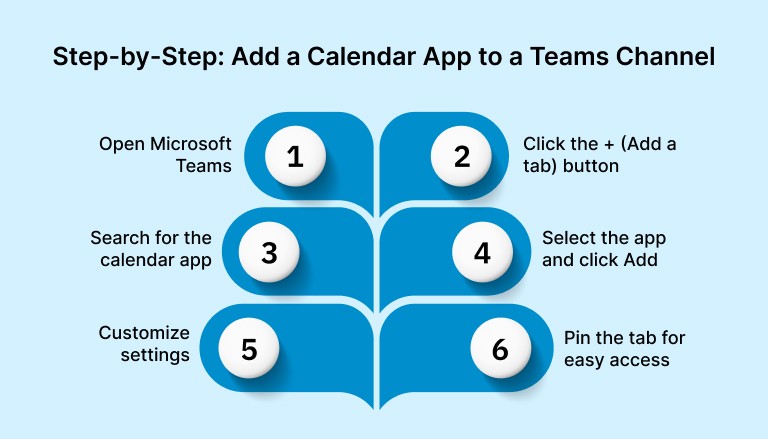
Open Microsoft Teams: Go to the desktop or web app and select the team or channel where you want to add the calendar.
Click the + (Add a tab) button: It’s at the top of the channel, next to your existing tabs.
Search for the calendar app
For built-in tools, type “Calendar” or “Shared Calendar”
For third-party apps, search for names like “Calendar Pro” or “Teamup”
Select the app and click Add: Some apps may ask for permission to connect to your Microsoft account or calendar.
Customize settings: Name the tab, choose the calendar you want to show, and adjust visibility or access rights if needed.
Pin the tab for easy access: Make sure it’s visible to everyone on the team by keeping it pinned at the top of the channel.
How to Connect External Tools (Like Calendly or Google Calendar)
For tools that don’t run inside Teams as tabs, you can still bring them into your workflow.
Calendly: Connect it to Outlook Calendar and set it to generate Microsoft Teams meeting links. Bookings will appear in your Outlook and Teams calendars automatically.
Google Calendar: Use integration platforms like Zapier, Appy Pie, or Microsoft Power Automate to sync Google Calendar events with Teams or Outlook. You can also add links to Google Calendars directly in chat or channel messages.
Power Automate (Advanced): For teams with complex needs, Power Automate allows you to build custom flows. For example, you can create a flow that posts a Teams message when a new event is added to a shared calendar.
Managing Permissions and Visibility
Default behavior: Most calendar apps follow the permission structure of the Teams channel they’re added to.
Control editing rights: Some tools let you assign roles like viewer, editor, or admin for more granular control.
Avoid clutter: Stick to one calendar per purpose, for example one for PTO and one for project timelines, to prevent overlap and confusion.
Best Practices for Managing Shared Calendars in Teams
A shared calendar inside Microsoft Teams can keep everyone aligned, but only if it's set up with clear structure and habits. Here are a few simple practices to help your calendar stay useful instead of becoming just another forgotten tab.
Use separate calendars for projects, personal tasks, and team-wide events
Instead of crowding everything into one calendar, create separate ones based on purpose. For example:
A project calendar for deadlines, launches, and milestones
A personal calendar for individual scheduling and task blocking
A team events calendar for PTO, holidays, meetings, and standups
This keeps each view focused and avoids overload.
Ask team members to keep their availability updated
Encourage everyone to block out their focus time, add PTO dates, and mark recurring meetings. This helps with scheduling across the team and avoids unnecessary conflicts. If you’re using tools like Outlook or Google Calendar alongside Teams, make sure they’re synced properly.
Use color coding to quickly understand what’s on the calendar
Most shared calendar apps let you assign colors to different types of events. Use consistent colors for types of entries like internal meetings, client work, deadlines, or out-of-office time. It creates a visual layer of organization at a glance.
Link scheduling tools to reduce back and forth
If your team regularly books meetings with external people, connect tools like Calendly or Microsoft Bookings. This cuts down on scheduling emails and makes it easier to find times that work for both sides. Just make sure your calendars are synced so booked slots show up in Teams.
Final Thoughts
Microsoft Teams has become the center of how modern teams communicate, but calendars are where the real tradeoffs happen. When meetings pile up and schedules stay fragmented, even the best collaboration tools can start to feel overwhelming.
The right calendar setup can help. For some teams, the native Teams calendar is enough. Others need shared calendars, clearer visibility, or better ways to schedule with people outside the organization. What matters most is choosing tools that reflect how your team actually works, not just how meetings get booked.
For individual contributors and team leads who want more control over their day, pairing a Teams-compatible calendar with a dedicated time and task planning system can make a noticeable difference. Tools like Akiflow help bring tasks, meetings, and priorities into one place so time isn’t just scheduled, but intentionally planned.
If your calendar feels full yet progress still feels slow, it may be time to look beyond meetings and focus on how your work fits around them. You can explore how Akiflow supports this kind of planning with a free trial at akiflow.com.
FAQs
Q: What is the best calendar to use for Teams?
A: The built-in Teams calendar (via Outlook) is best for basic meeting scheduling. For shared team visibility, apps like Shared Team Calendar or Calendar Pro are better. Akiflow is a strong choice for individuals who want to block time and manage tasks around meetings.
Q: Does Microsoft Teams have a calendar app?
A: Yes, Teams includes a calendar that syncs with your Outlook calendar. It supports scheduling, joining meetings, and viewing availability directly in the app.
Q: What calendar integrates with Teams?
A: Outlook integrates natively, while Google Calendar connects through tools like Zapier. Other popular integrations include Calendly, Shared Team Calendar, Calendar Pro, and Akiflow.
Q: What Microsoft program is best for calendars?
A: Outlook Calendar is Microsoft’s most complete calendar tool. It supports shared calendars, scheduling assistance, and deep integration with Teams.
Q: Is TeamUp calendar better than Google Calendar?
A: TeamUp is good for shared team access without user accounts, like for shift planning. Google Calendar offers more features and is better suited for professional and cross-platform scheduling.


